"Compare two PDF files" sounds like one task, but it is really two. If the PDFs are contracts, specifications or reports, you want to know which words changed. If they are drawings, there are hardly any words: the change is a wall that moved, a door that disappeared, a pipe that now runs a different way. Text comparison tools are excellent at the first job and nearly blind at the second. A visual overlay sees both: it compares everything printed on the page, so a changed word shows up just like a moved wall. This guide explains the difference, when to use which, and how we compare revisions in our own architecture studio.
Two kinds of PDF comparison
| Text comparison | Visual overlay | |
|---|---|---|
| Best for | Contracts, specifications, reports | Drawings, plans, details, and any sheet where text stays in place (schedules, title blocks, forms) |
| What it finds | Inserted, deleted and changed words | Lines, shapes and text that were added, removed or moved |
| How it shows it | A list of changes, words highlighted | Both revisions on top of each other, in colours |
| Misses | Geometry: a moved wall has no text change | Reflowed text: one inserted sentence shifts every line below it, so the whole rest of the paragraph lights up |
How to compare two text PDFs
- Use a PDF tool with a compare function. Adobe Acrobat Pro has a Compare Files tool that lists the differences between two versions of a document.
- Online comparison services also work, but they upload both files to someone else's server. For contracts or client drawings, check that this is allowed before you use one.
- Compare like with like: the same document type, ideally exported the same way. A scanned page has no real text, so a text comparison sees nothing until the scan is run through OCR.
How to compare two PDF drawings
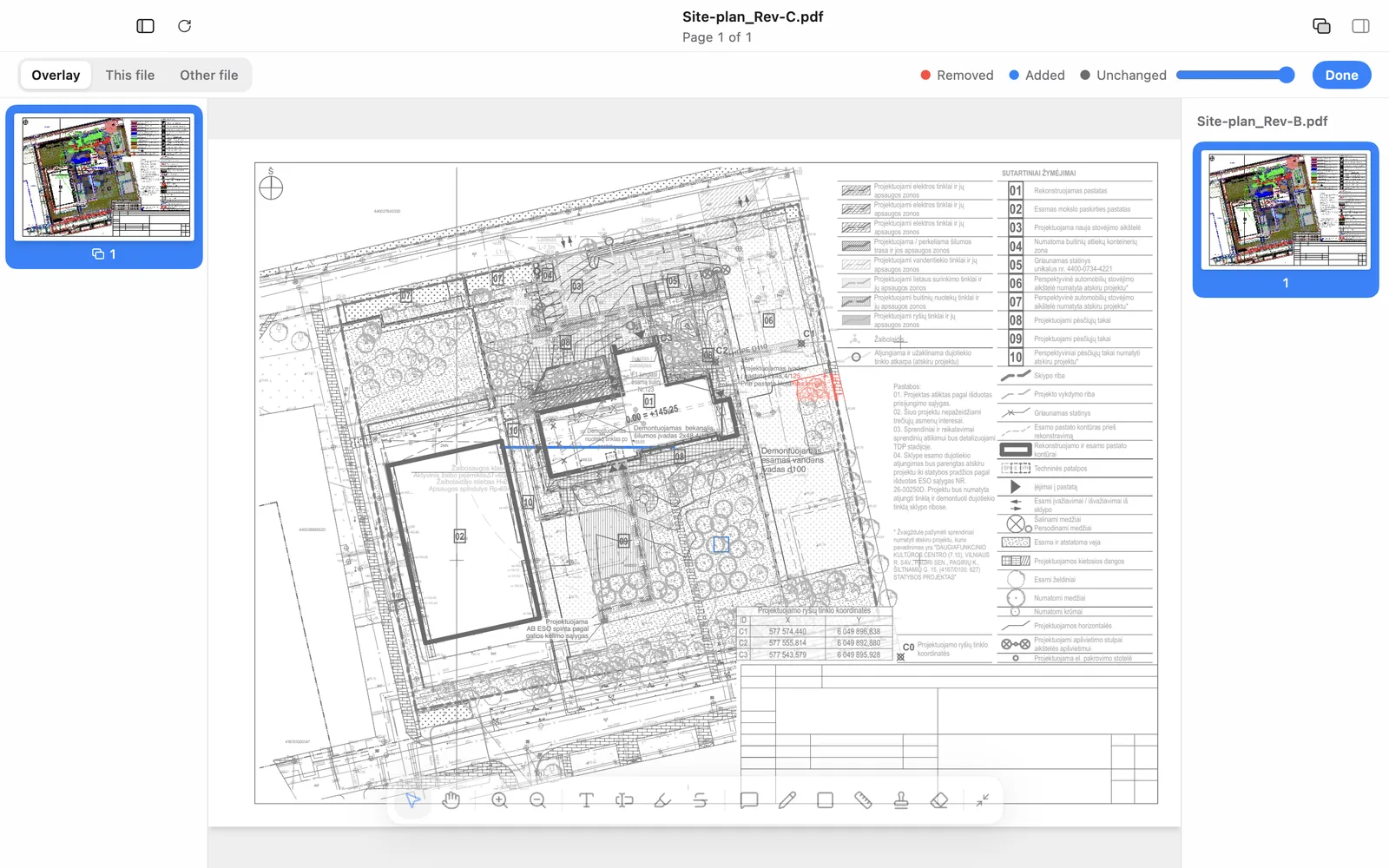
For drawings, the reliable method is an overlay: the old and the new revision drawn on top of each other, with each one in its own colour. Your eye goes straight to the colour, so one look tells you where to read carefully. The two sheets need to share the same page size and the same position on the sheet, which is the case when both revisions come from the same CAD or BIM project.
Step by step in Ncored
- Open the newer revision of the drawing.
- Drag the older PDF onto it, or click the compare button at the top right of the window (Compare with Revision…) and pick the older file. Ncored suggests likely candidates from the same folder and your recent files.
- Read the colours: blue is what the newer revision added, red is what it removed, grey is everything that stayed the same.
- Use the bar at the top: Overlay shows both, This file and Other file show one revision at a time. Fade the unchanged grey with the slider, or switch it off to see only the changes.
- Click Done, or press Esc, to go back to the drawing.
Text changes show up too
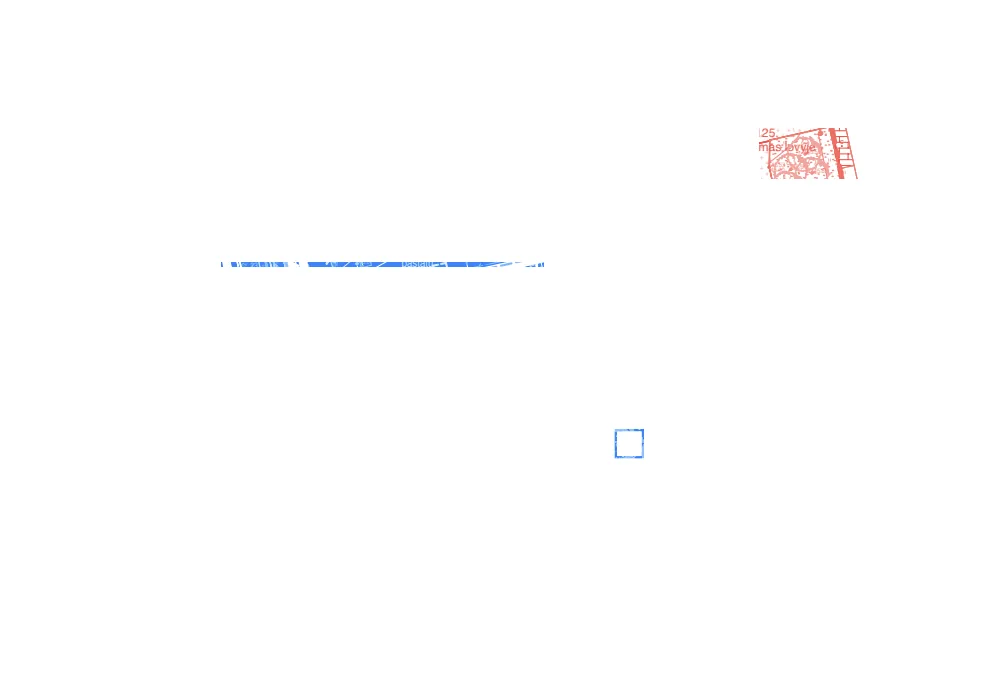
The overlay compares everything printed on the sheet, not only lines. If a note, a dimension, a room name or a line of a specification changed, the old text appears in red and the new text in blue, exactly where it sits on the page. On drawings, where text stays in place, you see precisely which label changed. On a reflowed text document, an inserted sentence pushes the following lines down, so everything after it is marked; for long contracts a word-by-word text comparison stays the clearer tool.
The comparison happens on your own computer. Neither file is uploaded anywhere, which matters when the drawings belong to a client.
Tips that save a wrong conclusion
- Same page size, same origin. If one revision was exported to a different sheet size or shifted on the page, everything looks changed. Re-export both from the same layout.
- Newer on top. Open the newer revision and compare it with the older one, so "added" really means added.
- Grey is not "approved". Unchanged only means the ink is identical. A dimension that was wrong before is still wrong.
- Check the title block too. A revision letter that did not change while the drawing did is a coordination problem in itself.
- Redline what you find. Cloud each real change and note it, so the review is traceable. See our guide on redlining a PDF drawing.
Frequently asked questions
How do I compare two PDF files for differences?
For text documents, use a compare function that lists word changes. For drawings, use a visual overlay that shows the two revisions on top of each other in different colours.
Does a visual overlay find changed text?
Yes. It compares everything printed on the page, so a changed word, number or label shows the old version in red and the new one in blue. It shows where text changed, not a list of edited words.
Can I compare two PDF drawings without uploading them?
Yes, with a desktop tool. Ncored compares revisions locally on Windows and Mac; nothing leaves your computer.
Why does everything show as changed?
Usually the two PDFs were exported at different page sizes or positions. Export both revisions from the same layout and compare again.
Is the comparison saved in the PDF?
No. The overlay is a view. Your drawing stays exactly as it was when you click Done.
Related: comparing two revisions of a construction drawing, revision clouds on PDF drawings, PDF measurement tool for drawings.