"Redline" means two different things depending on who you ask. A lawyer redlines a contract by tracking changes in the text. An architect or engineer redlines a drawing by marking corrections directly on the sheet, in a colour that cannot be mistaken for the linework, so the next person knows exactly what to change. Most guides online cover the first kind. This one is about the second: how to redline a PDF drawing so that the markups are clear, survive in any PDF viewer, and can be checked again when the next revision arrives.
What a drawing redline is for
A redline is an instruction, not decoration. Every mark should answer one of three questions for the person who receives the sheet: what is wrong, what should it be instead, and where exactly. That is why redlines on drawings follow a few habits that have hardly changed since they were made with a red pencil on paper prints.
A common redline colour convention
There is no single international standard, and offices vary. The convention below is widely used on drawing reviews; whatever you choose, agree on it once with the people you exchange drawings with, and put the legend on the first sheet you send.
| Colour | Meaning | Typical mark |
|---|---|---|
| Red | Add or correct: something must change | Revision cloud, new line, corrected dimension |
| Green | Delete: something must be removed | Strike-through or cross over the item |
| Blue | Note or question: no change yet, needs an answer | Text note or comment pin |
| Yellow highlight | Checked and correct | Highlight over items already verified |
How to redline a PDF drawing, step by step
- Work on the current revision. Check the revision letter in the title block before you start. Redlines on a superseded sheet are wasted work and a risk on site.
- Cloud the area, do not just circle it. A revision cloud around the problem tells the reader "look here" without hiding the linework underneath.
- Write the instruction next to the cloud. Short and specific: "Door D-04 swing to the corridor" beats "door wrong".
- Use real dimensions. If something is the wrong size, measure it at scale and write the correct value, rather than "too small".
- Mark deletions explicitly. A cross or strike-through over the item, so nobody wonders whether the cloud means "add" or "remove".
- Number your comments on larger sheets, so a reply email can say "item 7 done".
- Save the markups as standard PDF annotations, not flattened into the page, unless you are issuing a final record copy. Annotations can be answered, hidden and checked off; flattened marks cannot.
- Back-check the next revision. When the corrected sheet comes back, compare it with the previous one so you only have to look at what actually changed.
Redlining in Ncored
We built Ncored for exactly this daily loop in our own studio: open a heavy drawing set, mark it up, send it back. The tools map one to one onto the steps above:
- Shape, Cloud for revision clouds, with adjustable bump size and an optional fill. Click each corner and click the first point again to close it.
- Text for the instruction, and Comment pins for questions that need an answer.
- Draw for freehand marks, and Shape for rectangles, ellipses and polygons. Polygon lines can use drawing line types such as dashed, dotted, centerline and property line.
- Highlight for items you have checked.
- Measure to give the correct dimension at the sheet's scale, instead of an estimate.
- Stamp with your own image, for example your office's review stamp, with the white background removed in one click.
Everything is saved as standard PDF annotations, so the person receiving the sheet sees your redlines in Adobe Acrobat, Apple Preview or any other standards-compliant viewer. One honest limitation: Ncored has no arrow leader callout tool; we use comment pins and text placed next to the cloud instead.
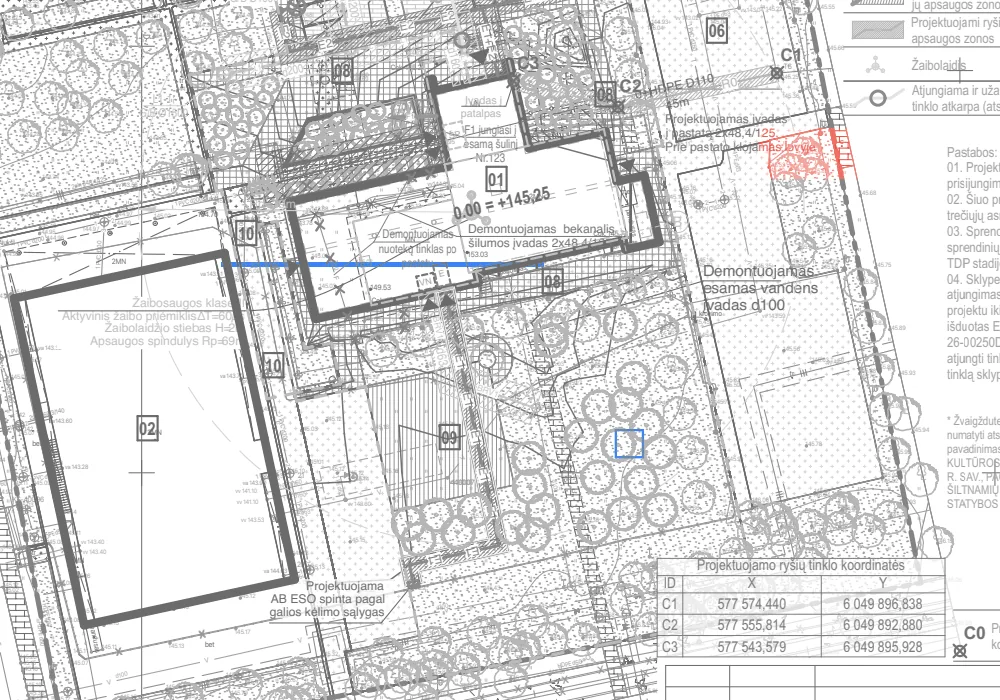
Checklist before you send redlines back
- Revision letter and sheet number match the set you were asked to review.
- Every cloud has a written instruction next to it.
- Deletions are marked as deletions, not just clouded.
- Dimensions in your notes are measured at the correct scale.
- The colour legend is on the first sheet, or agreed in writing.
- Markups are saved as annotations, not flattened, unless this is the final record copy.
- File name says it is a marked-up copy, for example "A-101_RevC_redlines.pdf".
Frequently asked questions
Can you redline a PDF?
Yes. A PDF editor with markup tools lets you add clouds, text, lines and highlights on top of the drawing as annotations, without changing the original linework.
What is the difference between redlining a contract and redlining a drawing?
Contract redlining tracks text edits. Drawing redlining marks graphical corrections on the sheet itself, usually with revision clouds, notes and dimensions in a contrasting colour.
Should I flatten redlines before sending?
Usually not. Annotations can be answered, hidden and checked off by the receiver. Flatten only when you issue a record copy that must not change.
Will my redlines show up for someone without Ncored?
Yes. Ncored saves standard PDF annotations, which any standards-compliant PDF viewer displays.
Related: revision clouds on PDF drawings, comparing two PDF drawings, marking up construction drawings, flattening PDF markups.